Managing Repeated Measurement Data
Loading Data from Field Book App
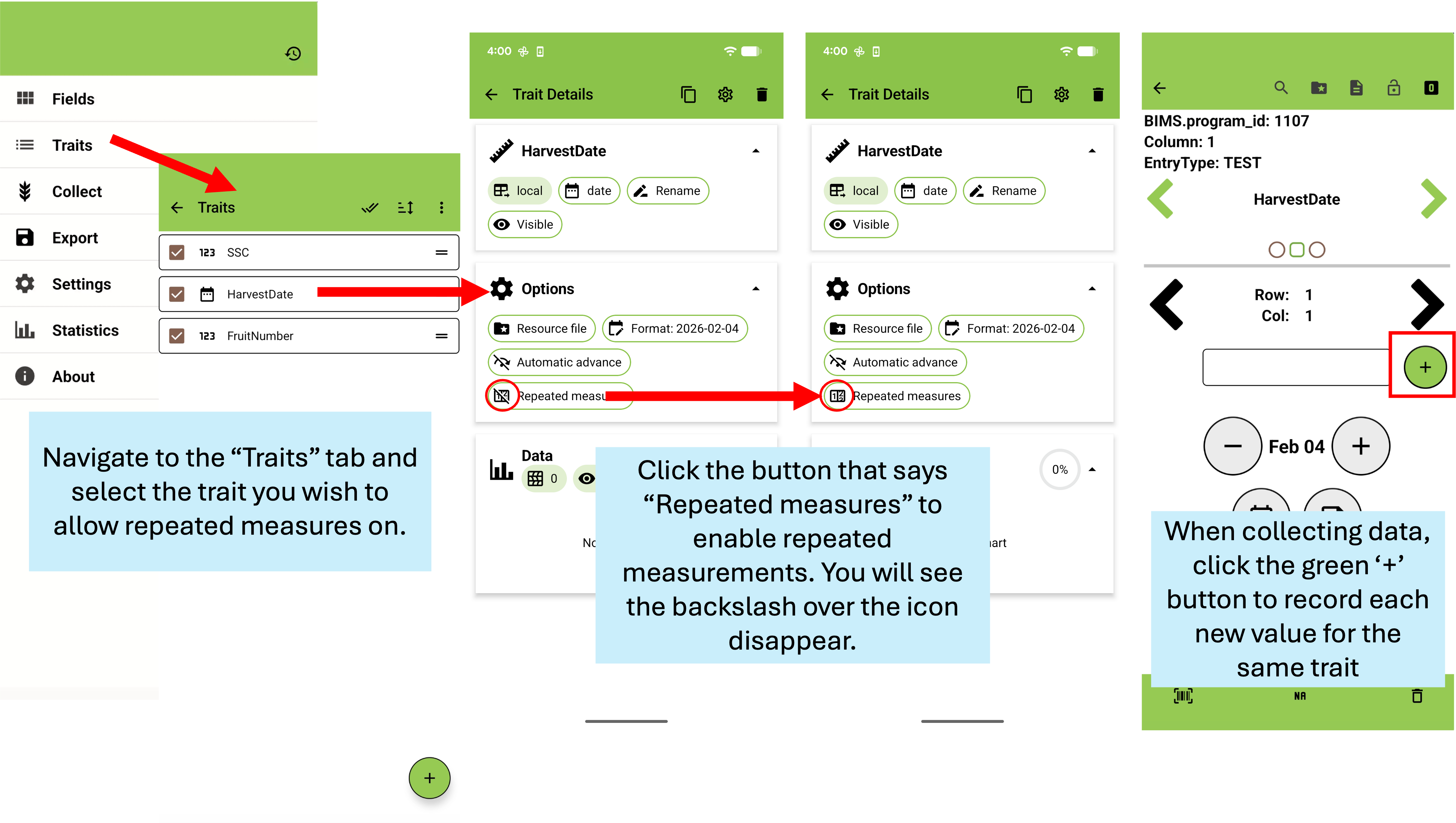
Using the Field Book App, users can record repeated measurement data. To set up, navigate to the “Traits” page of the FieldBook app and select the trait you would like to allow repeated measurements on. Under “Options” you will see a button for repeated measures. Select the icon to implement repeated measurements. You will see the slash through the associated icon disappear. Once selected, users will have the option to record repeated measurements by selecting the green circle with a plus sign when collecting data.
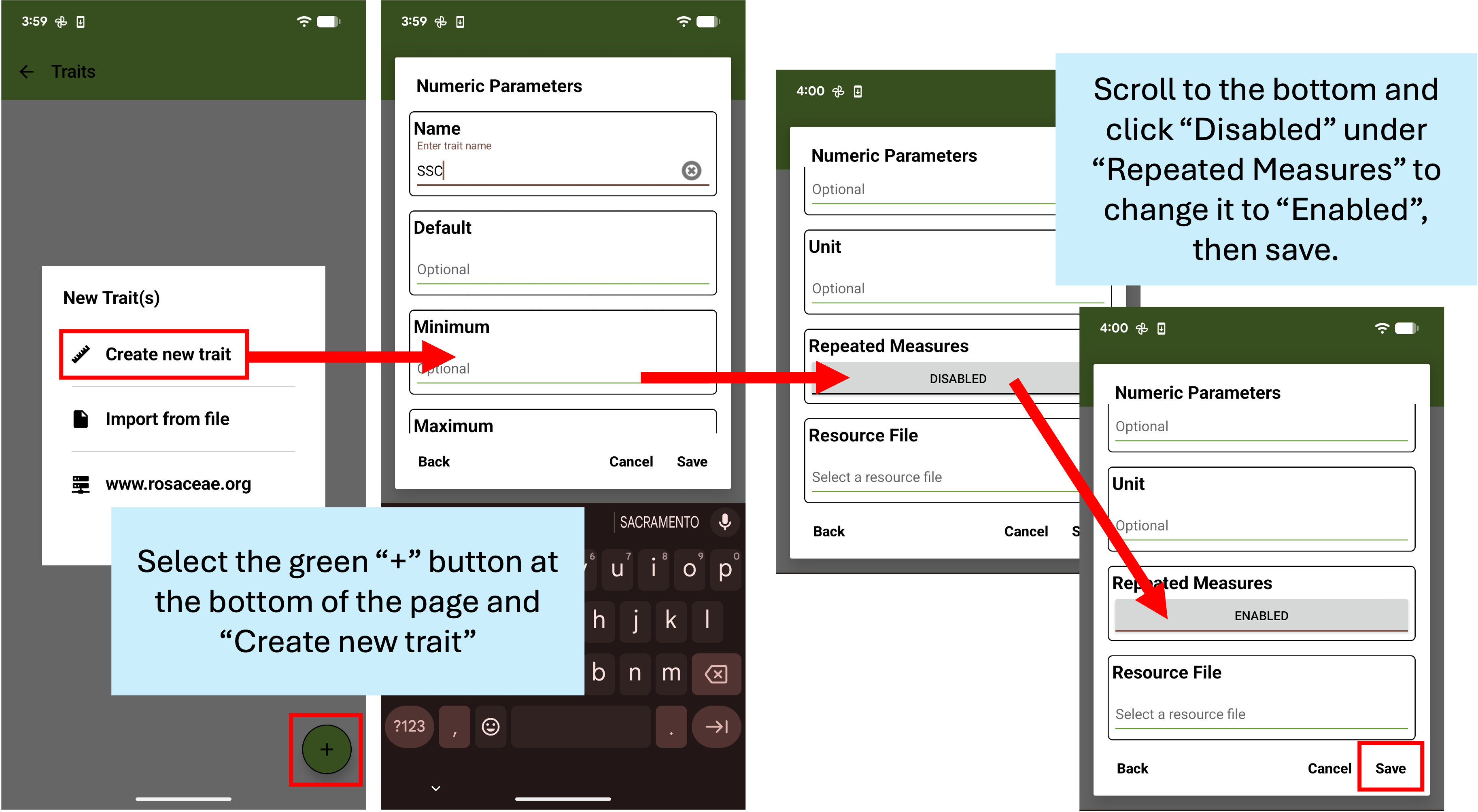
You can also enable repeated measures when creating a new trait directly in FieldBook. However, traits created directly through FieldBook must be manually uploaded to BIMS using templates, as they will not sync through BrAPI. When in the “Trait” page of FieldBook, select the green plus (+) button and “Create new trait”. At the bottom of the trait creation pop-up, there will be a selection for Repeated Measures. To enable, click the button that says “Disabled” and it will change to “Enabled”. Select “Save” to save the trait and collect repeated measurement data.
Using the Phenotype Long Form Template
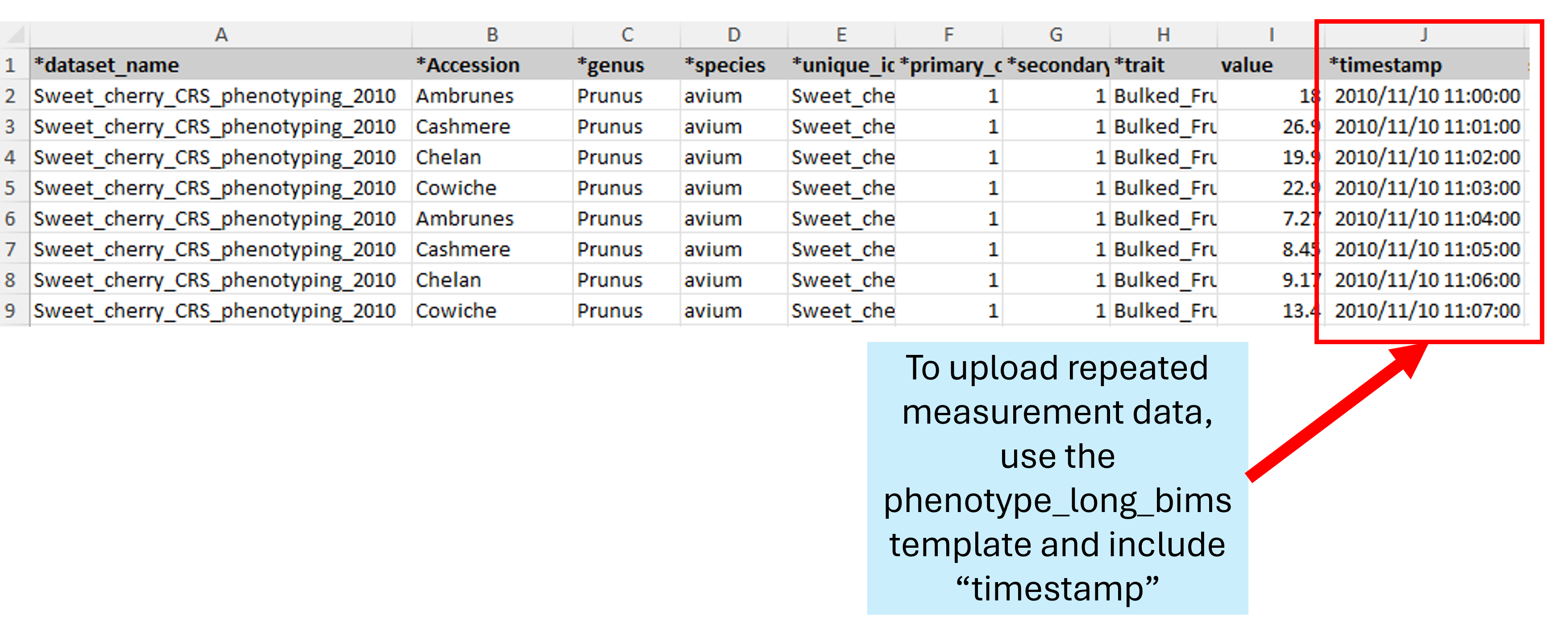
Repeated measurement data can also be uploaded to BIMS through the phenotype_long_bims template. Multiple data points per sample can be included by listing a unique timestamp along with the data in the format YYYY/MM/DD HH:MM:SS or YYYY-MM-DD HH:MM:SS.
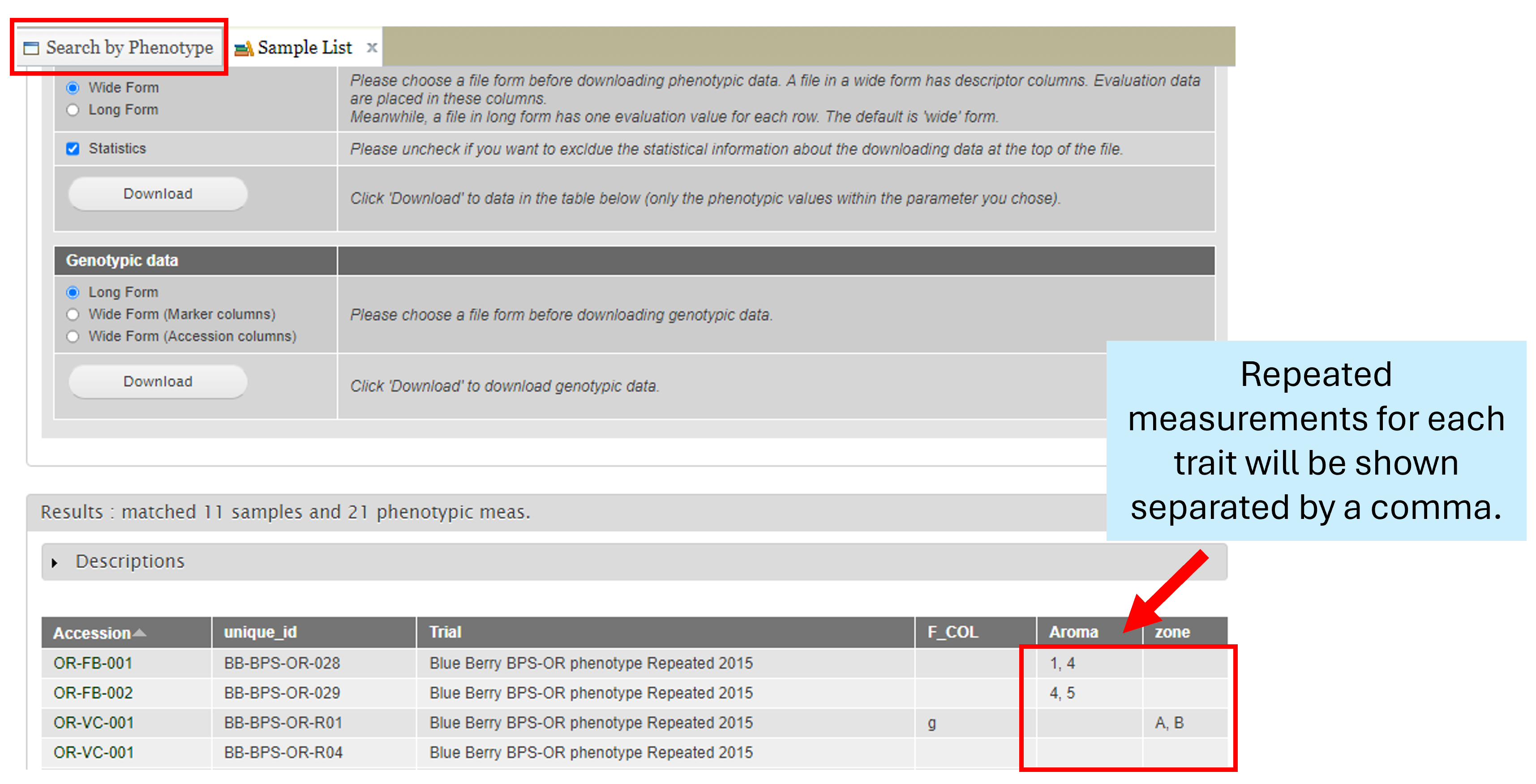
When viewing data, repeated measurements will be shown separated by a comma under the same trait name.